Introducing Multi Chart Layout on TradingView Charts
Analysing market trends effectively requires viewing the same symbol across multiple timeframes. The traditional method of constantly switching between tabs is slow, risky, and a distraction, especially during critical, fast-moving market moments.
Hence, we are excited to introduce Multi-Chart Layout to the BlinkX TradingView platform. You can use this feature to view and analyse up to eight charts together on a single screen.
Multi-chart lets you track up to 8 charts side by side, each with its own timeline, drawings, indicators, and settings, without ever leaving the screen.
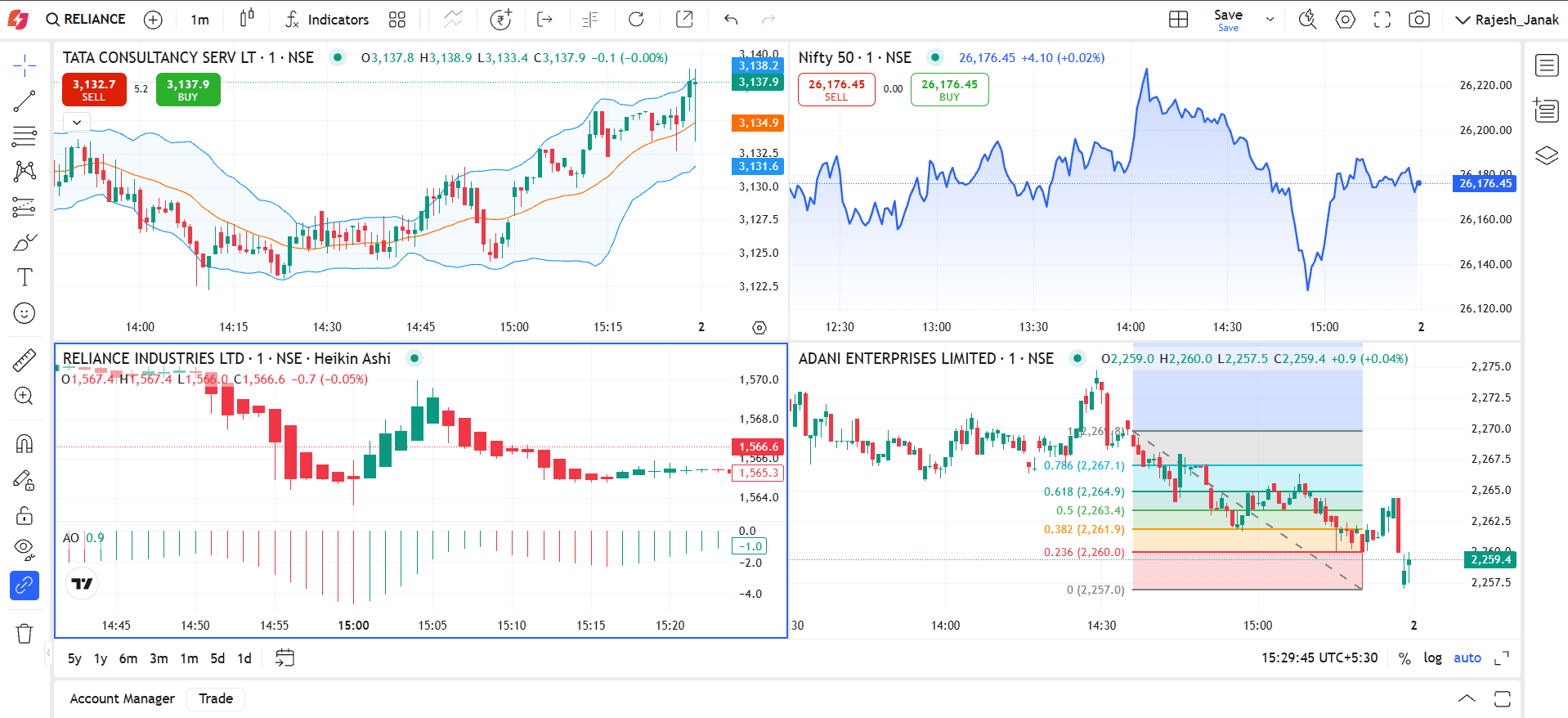
(Img: Multi Chart Layout on TradingView Charts)
Features of Multi-chart Layout
Synchronisation Features
Indicators you add to your first chart will automatically appear on the other charts in your layout. Drawings, however, will only sync across charts that display the same symbol. If you prefer, you can also manually sync elements such as the Symbol, Interval, Crosshair, and Time Range across all charts using the Sync Options.
From Select Layout → Sync Options, you can choose to sync:
- Symbol
- Interval
- Crosshair
- Time & date range
Benefits of Using Multi-Chart Layout
Below are some of the advantages of using the Multi-Chart Layout to increase your analytical depth and decision-making:
- Better Multi-Timeframe Analysis: You can easily view a symbol’s 5-minute, 1-hour, and daily charts simultaneously. This significantly improves recognition and allows you to confirm trends across different time horizons, matching your tactical entries with the broader strategic view.
- Easier Comparison of Related Instruments: Simultaneously monitor a stock, its sector index, and a major global index to monitor overall market movement.
- Faster Reaction Time: It reduces the need to switch tabs, allowing you to pick fast-moving trends and breakouts without interruption.
- Customise Workflow: You can customise each chart separately with its own symbol, interval, indicators, and settings. This helps you in a tailored and highly efficient technical analysis process.
Steps to Use Multi-Chart Layout on BlinkX?
To begin using the Multi-Chart Layout feature, follow these simple steps:
- Step 1: Navigate to the BlinkX TradingView interface at https://tradex.blinkx.in/
- Step 2: Locate and click the Layout Setup button
- Step 3: Choose Chart Layout options from 1, 2, 4, or up to 8 charts
- Step 4: You can customise each chart independently
Final Word
Whether you are studying multiple timeframes, comparing correlated markets, or validating technical setups, this feature helps you analyse the market movement more deeply.

Join thousands of learners